1. Introduction to Stock & Items in ERPNext
The Stock & Items module in ERPNext is the backbone of all inventory-related movements, whether driven by purchasing, sales, manufacturing, or internal transfers. Any mistake in item setup or warehouse structure will directly affect financial reports, stock valuation, COGS, and manufacturing outcomes.
- Build a clean Warehouse Tree structure suitable for the business.
- Create Item Groups and organize items logically.
- Configure UOMs and conversion rules (Piece – Box – KG…etc.).
- Create new Items with image, barcode, and batch settings.
- Link items to default accounts and taxes (accounting & tax perspective).
- Perform core stock transactions: opening stock, transfer, write-off.
- Use stock reports to validate balances and ensure data consistency.
This guide is written for end users (Storekeeper / Inventory Controller / Accountant) and can be used as a ready-to-deliver training material within a company using a test ERPNext environment.
2. High-level Inventory Cycle in ERPNext
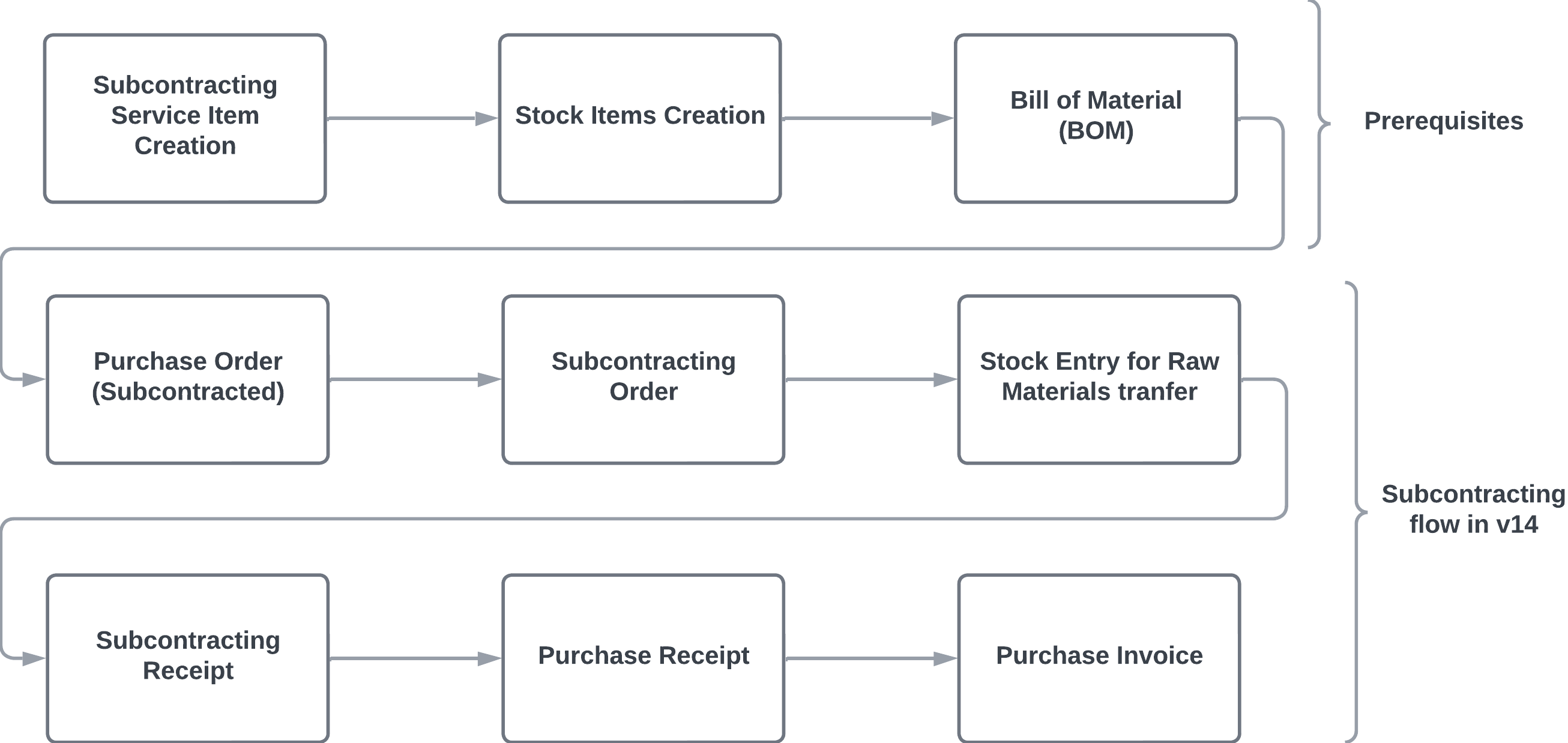
Before diving into screens, it is important to understand the inventory logic in ERPNext:
- First: Set up the Warehouse Tree (Warehouses).
- Second: Set up Item Groups and general defaults.
- Third: Define Items (UOM, taxes, barcode, batch…etc.).
- Fourth: Execute daily stock transactions (Stock Entry / Stock Reconciliation).
- Fifth: Validate results via reports (Stock Ledger / Stock Balance).
During hands-on sessions, it is recommended to work on a test company so trainees can experiment safely without impacting live data.
3. Warehouse Tree Setup
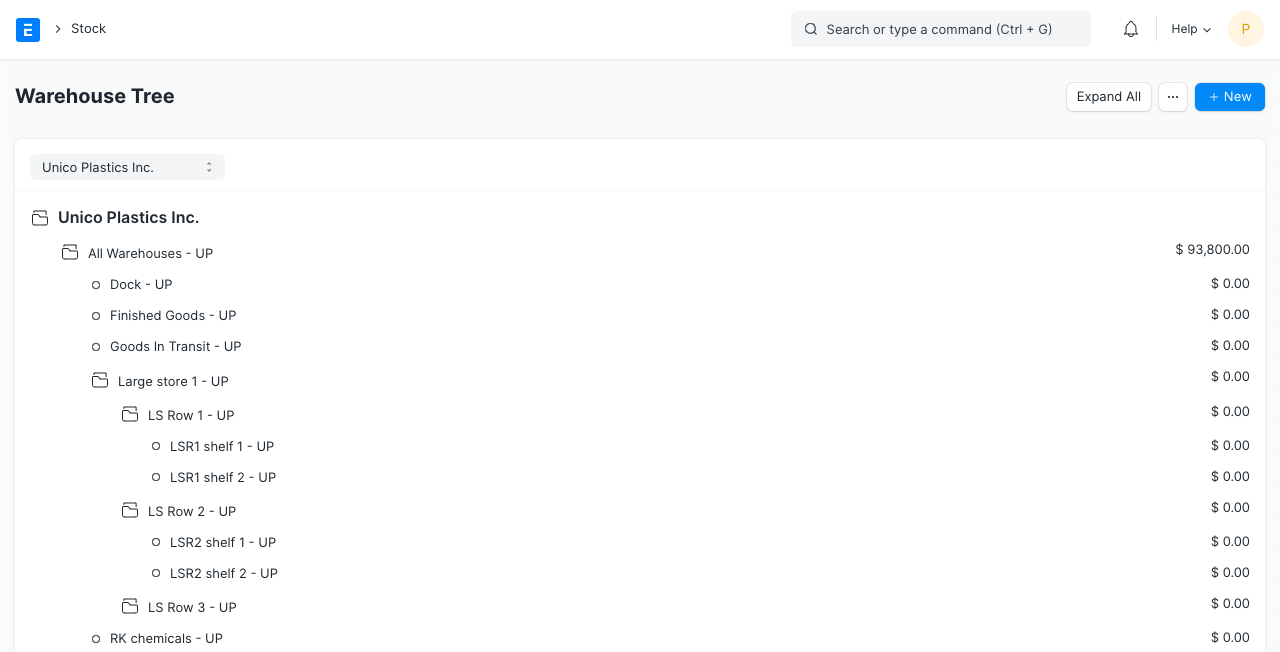
A Warehouse in ERPNext represents the physical or logical location where stock is stored (main warehouse, branch, showroom, damaged stock…etc.). Warehouses are displayed in a tree structure.
3.1 Opening the Warehouse Tree
Use: Stock > Warehouses or search for Warehouse.
3.2 Creating a Warehouse – Practical Steps
- Click New in the Warehouses screen.
- Enter a clear Warehouse Name (e.g., Main Store – Amman, Damaged Stock).
- Select the Company (in multi-company environments).
- Set a Parent Warehouse if it is a child node.
- Optionally select a Warehouse Type (Stores / Finished Goods / Scrap).
- Save to appear in the warehouse tree.
Keep the warehouse structure simple and consistent (Main – Branches – WIP – Scrap/Damaged) so the team can select the correct warehouse in every transaction.
4. Item Groups
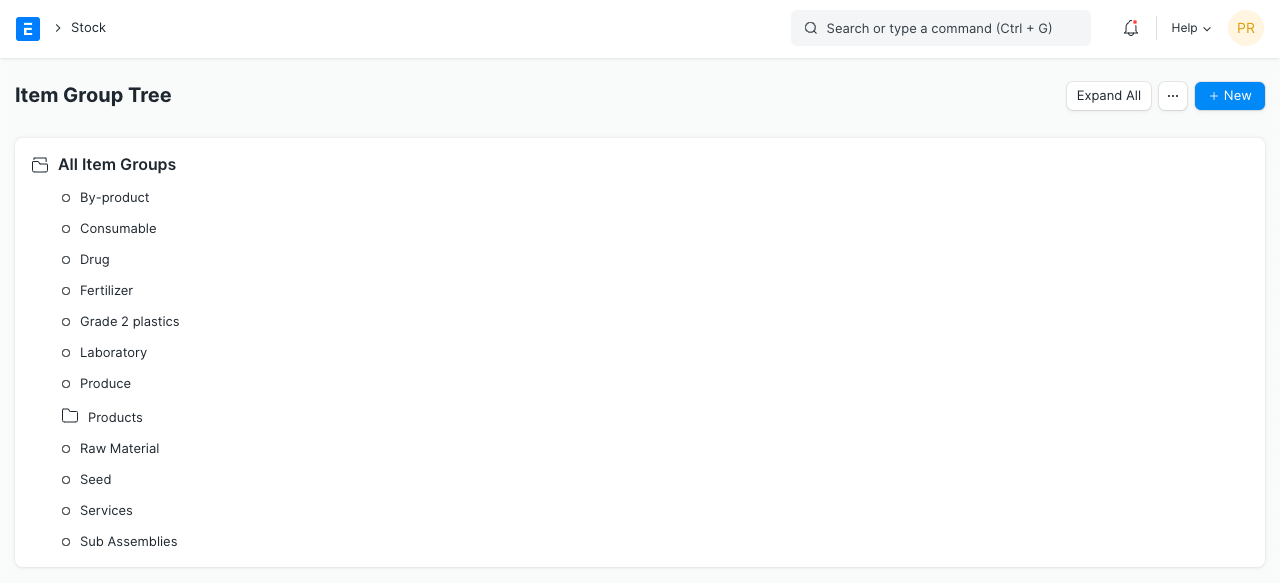
Item Groups help organize items into a clear taxonomy (Raw Materials, Packing Materials, Finished Goods, Services…etc.). They can also be used to assign default accounts or tax templates.
4.1 Opening Item Groups
Navigation: Stock > Items > Item Group
4.2 Creating a New Item Group
- Click New inside Item Group.
- Enter a group name (e.g., Raw Materials / Finished Goods).
- Set a Parent Item Group if it is a sub-group.
- With Accounting team, optionally configure default income/expense accounts.
- Save and use it later when defining items.
Avoid creating too many groups without a real need. Keep the structure clean and practical.
5. Units of Measure (UOM)
UOM setup is essential when the same item can be purchased or sold in different units (Piece – Box – KG…etc.).
5.1 Reviewing UOMs
Navigation: Stock > Settings > UOM

5.2 Multiple UOMs per Item
In the Item form, you can add multiple UOMs under the UOMs table with conversion factors.
- Main UOM: Piece (bottle).
- Additional UOM: Box (carton).
- Conversion Factor: 1 Box = 12 Pieces.
- Invoices can then sell the same item in either Box or Piece.
6. Item Master in ERPNext
The Item Master is the core of inventory operations. Every stock movement, invoice, or manufacturing step depends on accurate item setup.
6.1 Opening the Item Form
Navigation: Stock > Items > Item

6.2 Key Fields
- Item Code: Unique identifier (numeric or alphanumeric).
- Item Name: Display name on documents (can be Arabic too).
- Item Group: Category (Raw Materials, Finished Goods…etc.).
- Is Stock Item: Enable for stock-managed items.
- Default UOM: Main unit (Piece, Kg, Box).
- Maintain Stock: Keep enabled to track balances.
6.3 Linking Accounts and Taxes
In the Accounting section of the Item, you can assign default accounts or rely on Item Group defaults:
- Sales account (for finished goods).
- COGS and valuation behavior (typically set at company level or item group level).
- Service-related income/expense accounts if the item is a service.
You can also assign an Item Tax Template so taxes apply automatically on invoices.

6.4 Adding an Item Image
- Use the Image field to upload a clear product image.
- Save the item; the image may appear in trees, reports, and print formats depending on configuration.
6.5 Barcode Setup
- You can add multiple barcodes for the same item.
- Each barcode can be linked to a specific UOM (Piece vs Box).
- This is essential when using scanners in POS or warehouse operations.

6.6 Enabling Batch Management
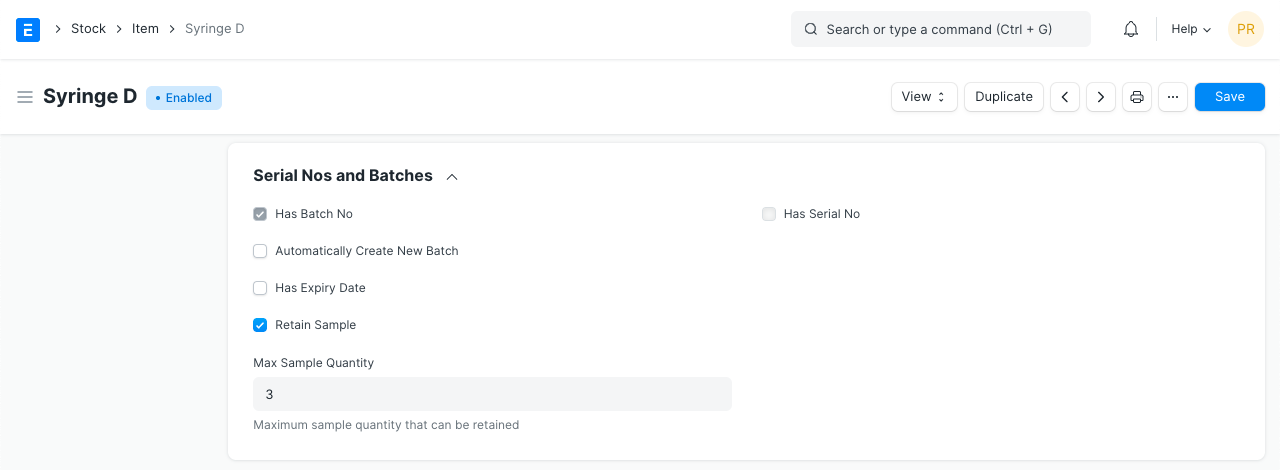
For items controlled by batch/lot number (food, pharma…etc.), enable:
- Has Batch No
- Has Expiry Date (if applicable)
- During stock transactions, ERPNext will request the batch number.
Before performing any stock transaction, ensure the item setup is complete: correct group, correct UOM, image, barcode (if required), and batch settings when applicable.
7. Practical Example – Defining a Finished Item
In this exercise, we define a simple finished item that will be used in sales and stock transactions.
- Item Code: JU-OR-250
- Item Name: Orange Juice 250ml
- Item Group: Finished Goods – Beverages
- Is Stock Item: Yes
- Default UOM: Piece
- Has Batch No: Yes
- Has Expiry Date: Yes
- Barcode: Add the product barcode
- Image: Upload a product photo
8. Core Stock Transactions using Stock Entry
After setting up items and warehouses, you can execute transactions using Stock Entry.
8.1 Common Stock Entry Types (non-manufacturing)
- Material Receipt: Add stock (opening stock, donation…etc.).
- Material Issue: Remove stock (damage, internal consumption…etc.).
- Material Transfer: Move stock between warehouses.
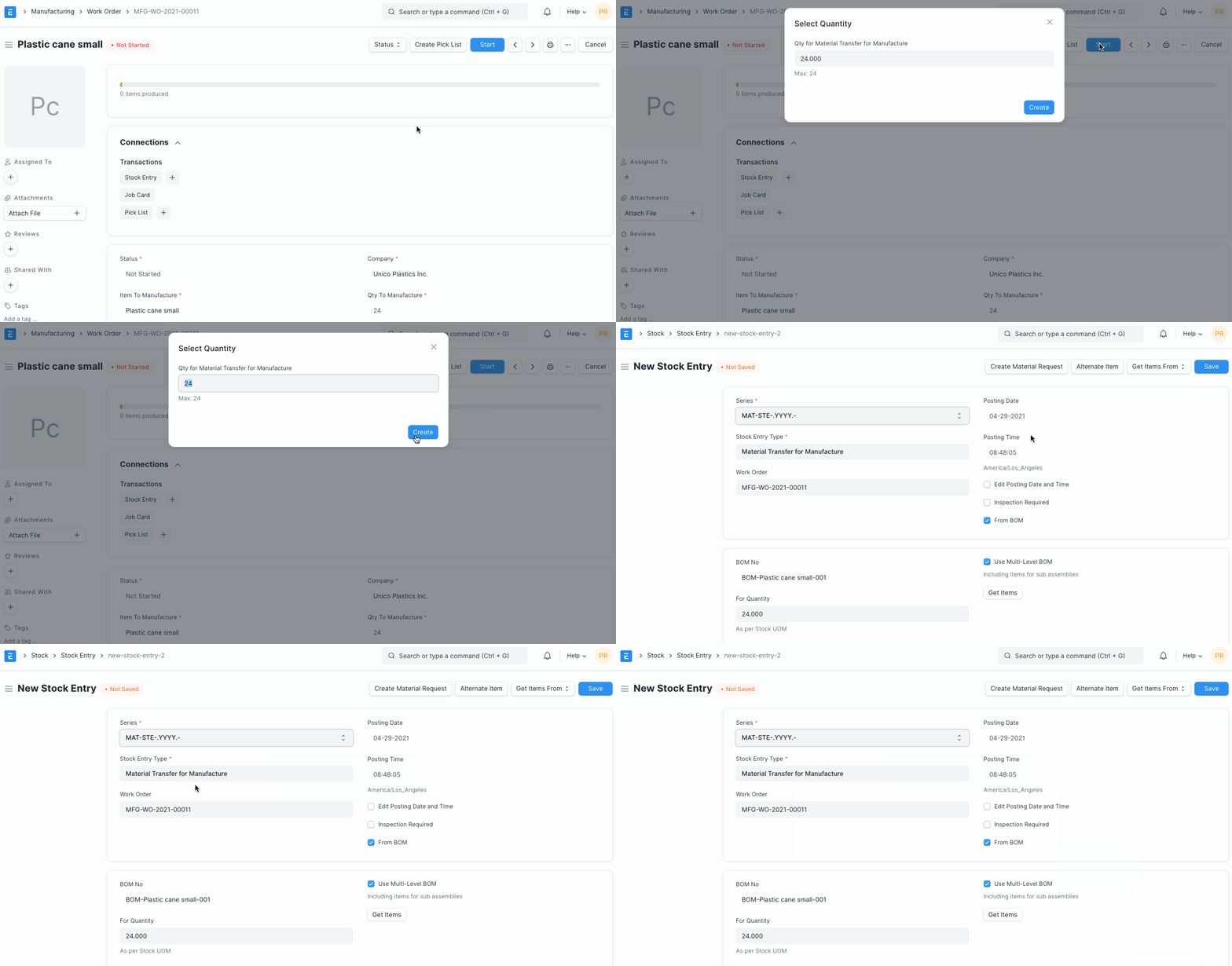
8.2 Material Receipt (Opening Stock)
- Go to: Stock > Stock Transactions > Stock Entry.
- Click New.
- Set Purpose = Material Receipt.
- In Items table add:
- Item Code
- Quantity
- Target Warehouse
- Rate (valuation rate, if needed)
- If batch-managed, select/create Batch and set expiry date if applicable.
- Save then Submit.
Opening stock can be posted via Material Receipt or via Stock Reconciliation. The latter is more suitable when you want to set quantities and valuation for many items at once.
8.3 Material Transfer
- Create a new Stock Entry.
- Set Purpose = Material Transfer.
- In Items table set:
- Source Warehouse
- Target Warehouse
- Item and Quantity
- Submit, then review the effect in Stock Ledger.
8.4 Material Issue (Damage / Loss)
To write off damaged or lost stock:
- Create a new Stock Entry.
- Set Purpose = Material Issue.
- In Items:
- Select the item
- Set Source Warehouse
- Enter the damaged quantity
- Coordinate with Accounting if an expense account mapping is required.
9. Stock Reconciliation
Stock Reconciliation is used to adjust inventory balances for:
- Posting opening balances for many items at once.
- Correcting physical count variances at period end.
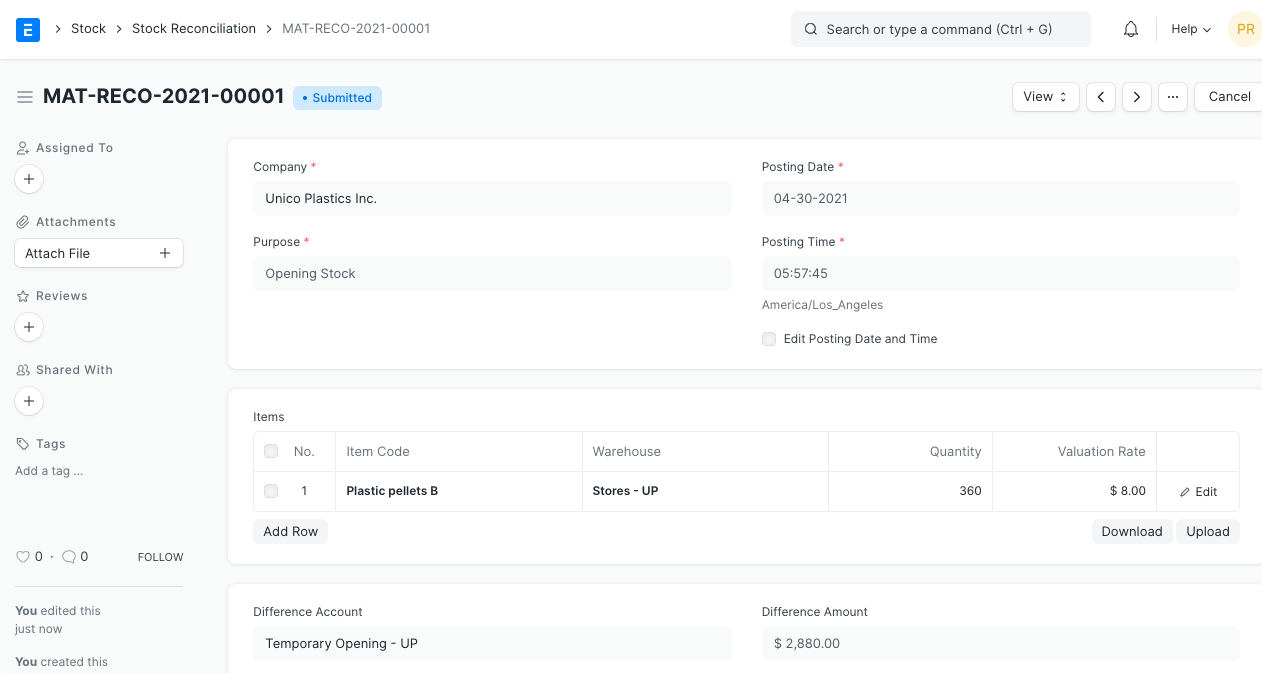
9.1 Simple Stock Reconciliation Steps
- Go to: Stock > Stock Transactions > Stock Reconciliation.
- Click New.
- Select Company and Posting Date.
- In the table:
- Select Warehouse
- Select Item
- Enter the counted Quantity
- Enter Valuation Rate if required
- Save and Submit; ERPNext will post adjustment entries.
Always coordinate with Accounting before running Stock Reconciliation because it affects stock valuation on the balance sheet.
10. Core Stock Reports
After setup and transactions, reports are used to validate balances and trace movements.
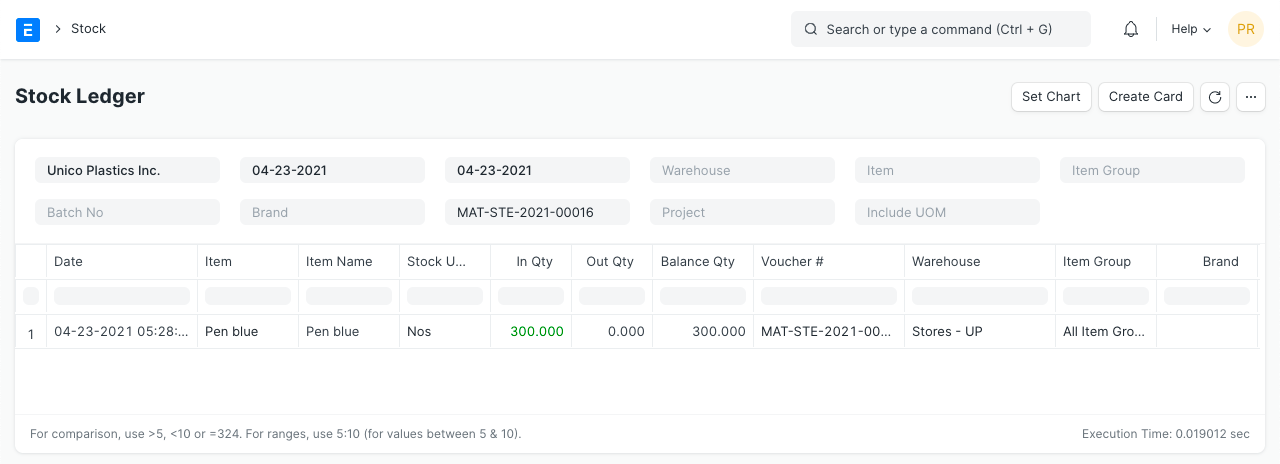
10.1 Stock Ledger
Shows all in/out movements for an item and warehouse over time:
- Navigation: Stock > Reports > Stock Ledger
- Filter by item, warehouse, and date range.
10.2 Stock Balance
- Navigation: Stock > Reports > Stock Balance
- Shows quantity and value by item and warehouse as of a selected date.
10.3 How to Use Reports in Training
After each exercise (receipt, transfer, issue), trainees should open Stock Ledger and Stock Balance to:
- Validate quantity changes and trace the exact transaction flow.
- Confirm that balances match expectations per warehouse.
Ensure trainees understand the relationship between Item Setup, Stock Movements, and Stock Reports to detect errors early and fix them correctly.
11. Stock Entry as the core stock movement document
In ERPNext, inventory is understood through movement history, not only the final balance. Stock Entry records receipts, issues, transfers, and operational consumption.
11.1 Why Purpose matters
Selecting the right Purpose, such as Material Receipt, Material Issue, or Material Transfer, makes the movement easier to audit and analyze later.
- Define the reason for the movement before creating the document.
- Select source and target warehouses according to the movement type.
- Review quantity, UOM, and valuation before submission.
- Open Stock Ledger after submission to verify the impact.
Official ERPNext reference: Stock Entry and Stock Transactions.
12. Stock Reconciliation and physical counts
Stock Reconciliation is used to set or correct balances based on an opening stock, a physical count, or a justified difference. It should not replace daily stock transactions.
- Opening stock entry.
- Physical inventory differences.
- Approved quantity or valuation corrections.
Official ERPNext reference: Stock Reconciliation.
13. Serial and Batch tracking
Some items must be tracked by batch or serial number, such as food products, medical items, devices, or warranty items.
13.1 Serial and Batch Bundle
In recent ERPNext versions, Serial and Batch Bundle organizes the serial or batch values used in each stock transaction.
Official ERPNext reference: Serial and Batch Bundle.
14. Inventory valuation and COGS impact
ERPNext inventory is both quantity and value. Valuation affects inventory on the balance sheet and cost of goods sold in profit and loss.
14.1 FIFO and Moving Average
FIFO and Moving Average should be treated as accounting policies, not only system settings.
Official ERPNext reference: Accounting of Inventory Stock and Stock Ledger.
15. Landed Cost Voucher
Import costs such as freight, customs, insurance, and handling should be allocated to received items to show the real inventory cost.
Official ERPNext reference: Landed Cost Voucher.
16. Reorder control and stockout prevention
Reorder levels can help ERPNext create Material Requests when stock falls below defined thresholds, depending on Stock Settings.
Official ERPNext reference: Auto Creation of Material Request and Stock Settings.
17. Inventory reports for audit and operations
- Stock Ledger: detailed stock movements and valuation.
- Stock Balance: summarized quantity and value.
- Projected Quantity: expected balance after open transactions.
- Batch-wise reports: balances by batch when batch tracking is enabled.
Official ERPNext reference: Stock Reports and Stock Transactions.
18. Inventory go-live controls
- Define who can create and submit Stock Entry.
- Restrict Stock Reconciliation to authorized roles.
- Clean unused warehouses.
- Define physical count policy.
- Review negative stock and zero-value stock before go-live.
Course summary for search and AI discovery
A practical inventory course connecting ERPNext item setup, warehouses, stock movements, reconciliation, valuation, serial and batch tracking, landed cost, and inventory reports.
Topics and keywords
- ERPNext Inventory
- ERPNext Warehouse Management
- Stock Entry ERPNext
- Stock Reconciliation ERPNext
- Serial and Batch ERPNext
- Landed Cost Voucher ERPNext
- Inventory Valuation ERPNext
- ERPNext Jordan
- NextFuture ERPNext Training